Model Editor
Position objects and edit mesh geometry right in the viewport.
- Move, Rotate & Scale
- Mesh Editing
- Object Alignment
- Pivot Adjustment
- Scene Organization
3D Studio
Open a model from the generator or import your own file, then repair the mesh, add PBR materials and cut the polygon count. Once it's done, export a production-ready GLB or USDZ.
Outbaksho 3D Studio picks up where the generator leaves off. Fix the geometry, set up materials, keep projects organized and get each file ready to export. Game props, product prototypes, building models and digital twins all go through the same steps.

Editor
Sculpt · Reshape
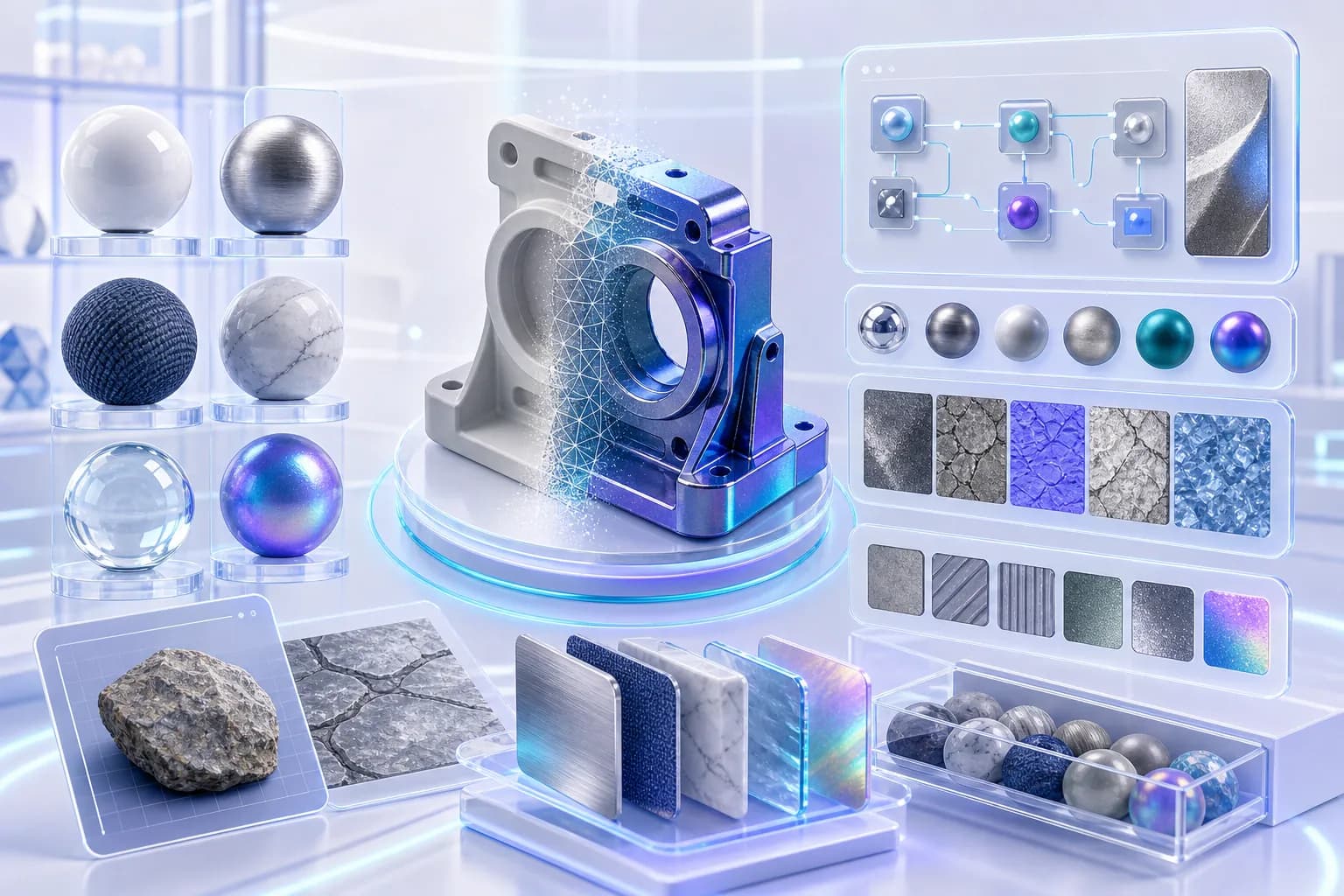
Materials
PBR · Shaders

Optimizer
LOD · Retopo

Scenes
Compose
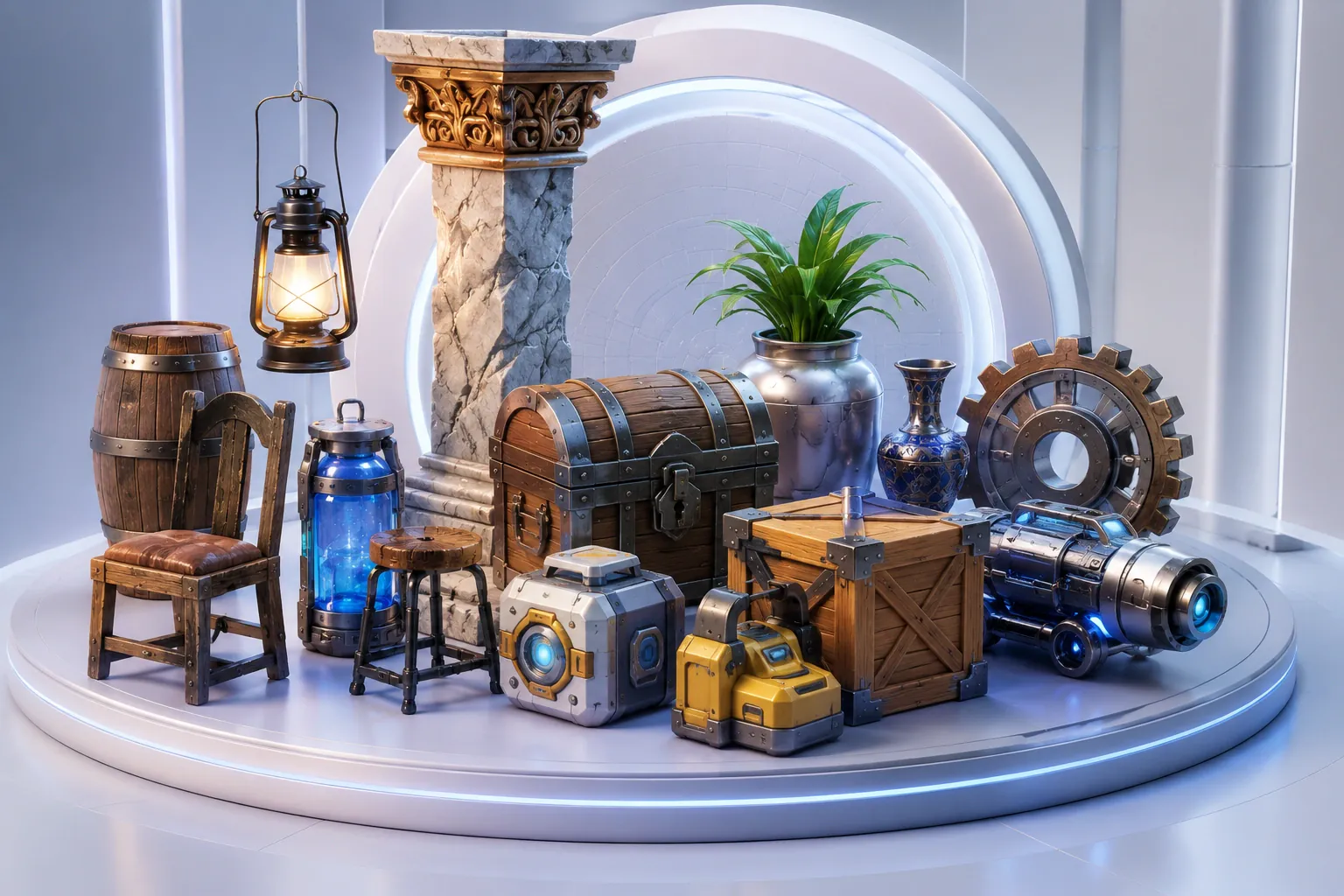
Assets
Library

Export
GLTF · USDZ · FBX · OBJ · STL · GLB · USD
The six tools inside 3D Studio and what each one does.
Position objects and edit mesh geometry right in the viewport.
Apply PBR materials and textures from the built-in library.
Cut polygon count and generate LODs while keeping the model's shape.
Lay out multi-object scenes with lights and cameras.
Keep projects and assets organized.
Export one asset or a batch, in the format you pick.
Works on imported models too
Machine learning that fixes broken meshes and assigns materials for you.
Automatically detect and repair mesh errors for cleaner geometry.
Improve texture quality while preserving fine details.
Generate suitable materials based on object type and surface characteristics.
Find the separate parts of a model so you can select and edit each one.
Optimize lighting, camera angles, and scene performance.
Apply edits and optimizations to multiple assets simultaneously.
Four steps, in the order you'll usually take them.
Import AI-generated models or existing 3D files.
Modify geometry, materials, textures, and scene layouts.
Lower the poly count and check the mesh for problems before export.
Save the finished file and open it in your engine or 3D app.
Import from six common 3D formats and export to seven.
Drop in meshes from any DCC or asset library.
Choose STL for 3D printing or GLTF for the web.
Works with Unity, Unreal, Blender, Maya, Cinema 4D, WebGL and AR/VR apps, so files go straight in without a manual conversion step.
What you fix before export depends on where the model is going, whether that's a game engine, a robot simulator or a film render.
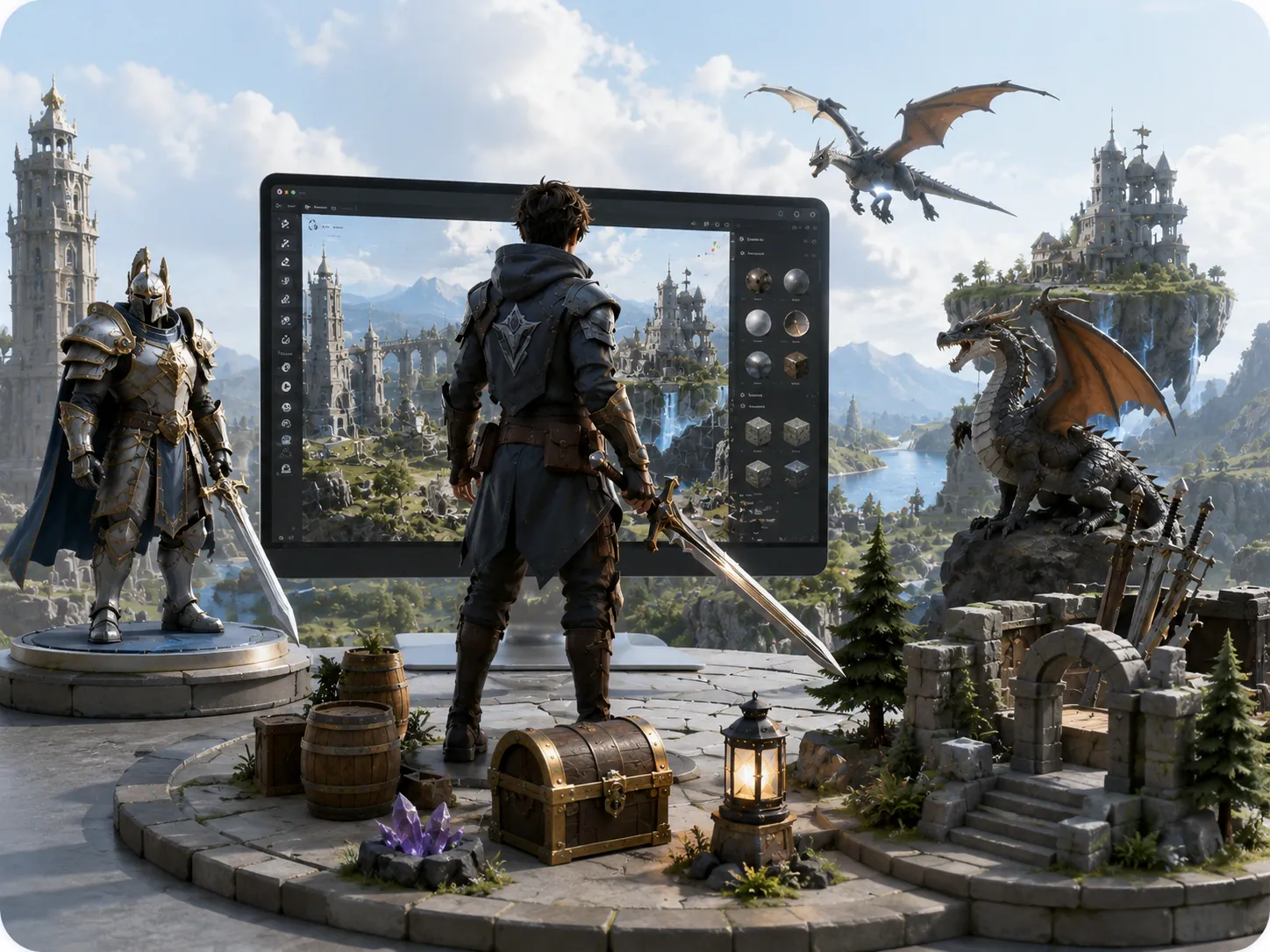
Keep assets within polygon budgets for Unity and Unreal.

Create realistic buildings, interiors, and environments.

Develop product concepts and industrial models.

Prepare models with clean collision geometry for robot simulation.

Generate LODs and lighter meshes for AR and VR apps.
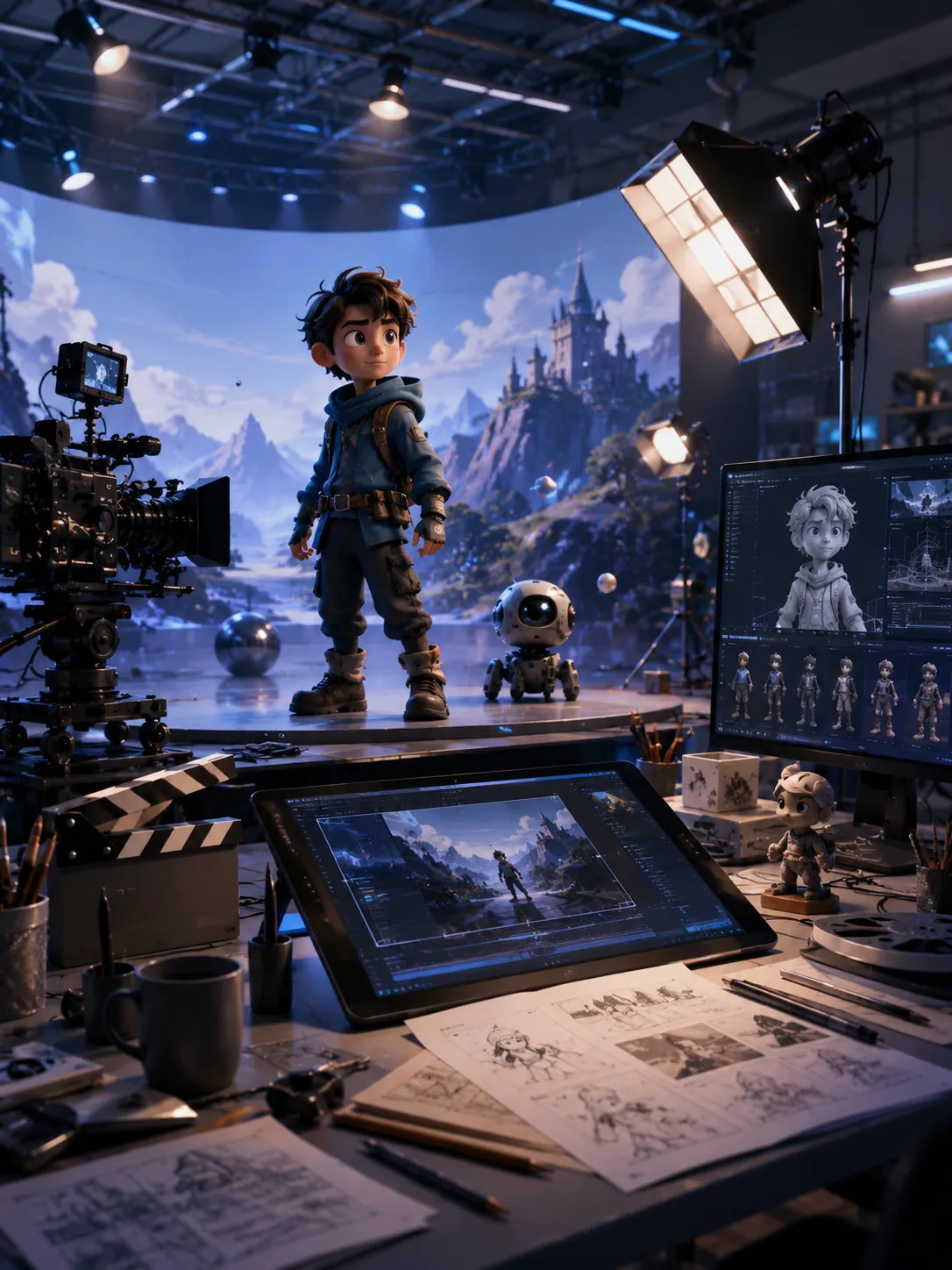
Build detailed assets for film shots and export them as USD.
All six share the same editor and export formats.
Six things you get when you keep your models in Outbaksho 3D Studio.
Answers to the most common questions about the 3D Studio.
Yes. Any model you generate opens in 3D Studio, where you can edit its mesh and materials.
Start with something you generated or imported and leave with a clean file, ready for your game, render or AR scene.
Creator plan and upCancel anytimeCard or UPI